How to add a functional dock to jquery.mb.containerPlus
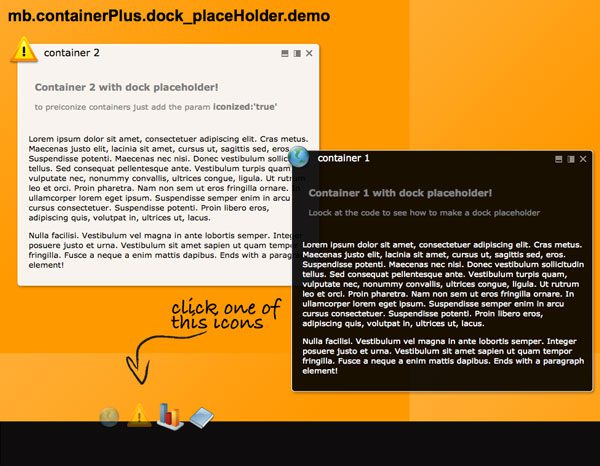
Many times people are asking me to implement features to my jquery components but most of the times those features are easily implementable by adding custom behavior to the callbacks functions yet available.
In ths post we’ll see how to realize a functional dock element for the mb.containerPlus.
For this tutorial I’m using the latest 2.5.0 release of this component that has implemented a new onCreate event callback and many other useful features (take a look at the component page).
1. How should it works?
In my project I need that for each container in the page there should be a small icon rapresenting it in a specific place called “Dock”. The “Dock” element is the place where all the containers are collected once minimized. This behavior is already implemented in the component but as default the iconized container icon is placed as last of the dock area and it’s not shown once the container is open.
So, in my case I want the icons to be alwais visible except when the container is closed and shoud mantain ther position in the dock area. Those icons should also have some actions for restoring/iconizig the corresponding container.
2. How to obtain this behavior?
mb.containerPlus has callbacks events that let you implement additional functionalities for their behavior.
The standard initialization of a containerPlus does not introduce callbacks.
this is the simple code:
[sourcecode language=”javascript”]
$(".containerPlus").buildContainers({
containment:"document",
elementsPath:"../elements/"
});
[/sourcecode]
For this tutorial we have to create some extra methods to be invoked once the container is initialized, once it’s iconized and once it’s restored.
the final initialization code will be:
[sourcecode language=”javascript”]
$(".containerPlus").buildContainers({
containment:"document",
elementsPath:"../elements/",
dockedIconDim:45,
<strong>onCreate</strong>:function(o){<strong>initDock(o,"dock")</strong>},
<strong>onClose</strong>:function(o){<strong>close(o)</strong>},
<strong>onRestore</strong>:function(o){<strong>restore(o)</strong>},
<strong>onIconize</strong>:function(o){<strong>iconize(o)</strong>},
effectDuration:300
})
[/sourcecode]
As you can see some extra methods has been added as callbak to the init function.
onCreate callback:
On the onCreate event I added the initDock(o,dockID) function that build the placeholder for the initialized container icon on the “Dock”; the function is:
[sourcecode language=”javascript”]
function <strong>initDock(o,docID)</strong>{
var opt= o.get(0).options;
var docEl=$("<span>").attr("id",o.attr("id")+"_dock").css({width:opt.dockedIconDim+5,display:"inline-block"});
var icon= $("<img>").attr("src",opt.elementsPath+"icons/"+(o.attr("icon")?o.attr("icon"):"restore.png")).css({opacity:.4,width:opt.dockedIconDim, cursor:"pointer"});
icon.click(function(){o.mb_iconize()});
docEl.append(icon);
$("#"+docID).append(docEl);
o.attr("dock",o.attr("id")+"_dock");
}
[/sourcecode]
The two parameters I’m passing to the function are the container element (o) provided by the mb.containerPlus callback method and the “Dock” element ID (docID).
Here is what this function does:
[sourcecode language=”javascript”]
var <strong>opt</strong>= o.get(0).options;
[/sourcecode]
it fills the opt variable with the container options to get easily some usefull properties for its manipulation.
[sourcecode language=”javascript”]
var docEl=$("<span>").attr("id",o.attr("id")+"_dock").css({width:opt.dockedIconDim+5,display:"inline-block"});
[/sourcecode]
it defines the placeholder for the container icon on the dock as docEl, setting an ID (composed by the container ID and a “_dock” postfix ) and some CSS properties: the width retrived from the dockedIconDim option setted as option of the init function.
[sourcecode language=”javascript”]
var icon= $("<img>").attr("src",opt.elementsPath+"icons/"+(o.attr("icon")?o.attr("icon"):"restore.png")).css({opacity:.4,width:opt.dockedIconDim, cursor:"pointer"});
[/sourcecode]
it defines the icon element to be placed inside the placeholder retriving it from the container attribute “icon” created by the metadata written in the container DIV class.
[sourcecode language=”javascript”]
icon.click(function(){o.mb_iconize()});
[/sourcecode]
it attaches an onclick event to the icon to iconize the corresponding container.
[sourcecode language=”javascript”]
docEl.append(icon);
$("#"+docID).append(docEl);
[/sourcecode]
it places the icon into the placeholder and than the placeholder into the “Dock” element.
[sourcecode language=”javascript”]
o.attr("dock",o.attr("id")+"_dock");
[/sourcecode]
it redefines the “dock” attribute of the container to let it iconize into its placeholder.
onClose callback:
On the onClose event I added the close(o) function that hide the placeholder icon once the container is closed:
[sourcecode language=”javascript”]
function close(o){
$("#"+o.attr("dock")).find("img:first").hide();
}
[/sourcecode]
onRestore callback:
On the onRestore event I added the restore(o) function that shows the placeholder icon of the restored container:
[sourcecode language=”javascript”]
function restore(o){
$("#"+o.attr("dock")).find("img:first").show();
}
[/sourcecode]
onIconize callback:
On the onIconize event I added the iconize(o) function that hides the placeholder icon of the iconized container; the mb.containerPlus component will fill the “Dock” placeholder with its icon:
[sourcecode language=”javascript”]
function iconize(o){
$("#"+o.attr("dock")).find("img:first").hide();
}
[/sourcecode]
3. The javascript code:
Here is the initialization javascript code for containers in this tutorial:
[sourcecode language=”javascript”]
$(function(){
function initDock(o,docID){
var opt= o.get(0).options;
var docEl=$("<span>").attr("id",o.attr("id")+"_dock").css({width:opt.dockedIconDim+5,display:"inline-block"});
var icon= $("<img>").attr("src",opt.elementsPath+"icons/"+(o.attr("icon")?o.attr("icon"):"restore.png")).css({opacity:.4,width:opt.dockedIconDim, cursor:"pointer"});
icon.click(function(){o.mb_iconize()});
docEl.append(icon);
$("#"+docID).append(docEl);
o.attr("dock",o.attr("id")+"_dock");
}
function iconize(o){
$("#"+o.attr("dock")).find("img:first").hide();
}
function <strong>restore</strong>(o){
$("#"+o.attr("dock")).find("img:first").show();
}
function <strong>close</strong>(o){
$("#"+o.attr("dock")).find("img:first").hide();
}
$(".containerPlus").buildContainers({
containment:"document",
elementsPath:"../elements/",
dockedIconDim:45,
onCreate:function(o){initDock(o,"dock")},
onClose:function(o){close(o)},
onRestore:function(o){restore(o)},
onIconize:function(o){iconize(o)},
effectDuration:300
});
});
[/sourcecode]
4. The HTML code:
And here the HTML code to define a container:
[sourcecode language=”javascript”]
<div id="c1" class="containerPlus draggable resizable {buttons:’m,i,c’, icon:’browser.png’, skin:’black’, width:’500′,iconized:’true’, dock:’dock’, title:’container 1′}" style="position:fixed;top:130px;left:400px">
Content goes here
</div>
[/sourcecode]
As you can see the code to define the containerPlus is really simplified respect previous versions. You don’t need to write all the container structure but only the content.

This demo is included in the component package you can download from the mb.containerPlus page:


Hi,
I have several docked containers that work fine, but I’m trying to create a modal window (not docked, closed on the beginning and opened from a js function). From the comments I can see that there was an example in http://dl.dropbox.com/u/1976976/jquery.mb.containerPlus_tutorials.zip, but this link does not exist anymore. Can anybody help me?
Thank you
hello
thank you for your help, it has been very useful!
i have managed to do pretty much most things so far now, just a couple of final things!
firstly, is it possible to display the title of the container with the icon? i am attempting to create something similar to the ‘minimise’ bar in windows, where the container title area is docked and shows the title of each container (rather than just using an image).
secondly, is it possible to have the buttons in the button bar of the contain perform more than one function? for example, clicking a ‘restore’ button returns the size of the container to its original size and also the position on the page?
many thanks for all your help.
Richard
Hi Richard,
— can you tell me if you can keep the layout of the content the same within the container?
That depends on the content you insert and not on the container…
— where do i go to set the top and left hand side edges of the container to resizable?
if you want to change the default handles behavior edit the js file at line 219 (or around…):
From:
2
handles:isDraggable ? "":handles,
To:
2
handles:isDraggable ? "n, e, s, w, ne, se, sw, nw":handles,
The handle is a comma separated list of char string representing the direction; just use the one you need.
— can you have a button that when clicked on the container goes back to its default position on the page?
You can make your owm customized function for that using the methods exposed by the component.
Bye,
matteo
Hello,
sorry, i forgot to ask.
a very useful function is the the container moves as you resize the page. however, it seems to be set so that the right hand side and bottom of the container are always in view, then if that is the case it moves to make sure that the top and left are in view. is it possible to change thee default setting so that the box always shows the top and left of the container when the browser page is resized?
many thanks
richard
Hello
can you tell me if you can keep the layout of the content the same within the container? Currently the content expands or contracts its width as you change it’s size. can you set the containers so the content stays in the same position, but if the container size is reduced a sideways slide bar appears to allow you to scroll and see the hidden content, like you can with the vertical slide bar?
also, where do i go to set the top and left hand side edges of the container to resizable, rather than just the right hand side and bottom edges?
finally, can you have a button that when clicked on the container goes back to its default position on the page?
many thanks
richard
Hi Gerd,
1. Insted of loading all the containers on the page you can create them on the fly just wen you need via ajax.
2. if you don’t set a height and the container has not been resized this should be the default behavior…
3. You need a custom function that verify which container is actually selected and closes the others…
4. make a modal contaier is quite easy (see one of the example from the above link).
here is a link to a demo folder containing some useful example that can help you for your issue: http://dl.dropbox.com/u/1976976/jquery.mb.containerPlus_tutorials.zip
You can also take a look at this Demo I realized for a client: http://www.open-lab.com/arms (just click “enter” to get in); all the containers are invoked via Ajax only if needed…
Bye,
Matteo
Hello Matteo,
first I would like to thank you for mbcontainers plus! Although I am not a programmer,
it is my (almost) succeeded in creating a template for my eCommerce shop. Unfortunately,
I lack the knowledge to implement some features that are urgently needed
1) Is it possible the containers (div blocks) with the status “iconized: true” then be
loaded when the status to “iconized: false” changes? The shop has a lot of the containers..
that should be never shown all at the same time…
2) If a container larger (height) than the current window is a vertical
Scrollbar displayed. Is it possible the container completely shown without scrollbar?
I tried everything i know….
3) With a button click it should be possible selected containers
display or hide the non-selected.
With $ (‘# left3c’). mb_iconize (true or false), $ (‘# left3c’). mb_open (true or false),
$ (‘# left3c’). mb_close (true or false) was changed, only the state.
Containers that are displayed on such already, and even after the “Button
press “will still appear to be sadly hidden.
4) Install “modal View” selectable in my template?
The Shop Url:http://www.n-os.de
Of course I will pay for this assistance. Tell me please the price you need
to incorporate the above features …
MfG
Gerd Hoffmann
hello
many thanks for your help
i can do pretty much everything i need to now.
however, there is one thing left.
in your demo, the containers have different limits on where they can be dragged on the page. for example, the ‘doc’ container can be dragged furtehr down than the ‘demo’ container. also, if a container is iconised and the restored, the container box can be moved further down.
is there somewhere where you can set the limits of where the container box can be dragged to on the page? can you set it to ‘whole page’ or ‘unlimited’ or other options?
many thanks
richard
Those buttons are defined in the CSS file. you can change them as you want.
Bye,
Matteo
Hi Richard,
The dock of a container is an HTML element you define as dock in the container metadata properties (into the class attribute):
class=”containerPlus draggable resizable {buttons:’m,i,c’, icon:’browser.png’, skin:’white’, width:’500′,iconized:’true’, dock:’dock’, grid:100, title:’grid drag’}”
This element can be placed wherever you whant via CSS.
The docked icon is the one defined as “icon” in the metadata definition:
class=”containerPlus draggable resizable {buttons:’m,i,c’, icon:’browser.png’, skin:’white’, width:’500′,iconized:’true’, dock:’dock’, grid:100, title:’grid drag’}”
and you can’t have buttons for that.
You can have buttons or links to open, close, minimize, change position, etc. for the container of course. To know how to please visit the documentation site: https://github.com/pupunzi/jquery.mb.containerPlus/wiki/
Bye,
Matteo
Hello
sorry, i forgot to ask in my last post, where do i go to change the maximise, minimise, close buttons etc?
many thanks
richard
hello
this is a great script, exactly what i have been looking for. however, i cannot find where i vary the position of the dock? it is currently set in the same position on my page as the position in your demo example. also, i assume it is possible to use anything instead of images for the icons, such as buttons, text etc?
Hi Jamie,
In the truth all containers slide… its the normal behavior of the mb.containerPlus component when restored from the iconized state on Chrome, Firefox, Opera and Safari. On IE this behavior has been removed for the unsmoothness on this browser.
The position of the docked icon is defined by you in the DOM of your page.
See the tutorial: http://pupunzi.open-lab.com/2010/06/19/how-to-add-a-functional-dock-to-jquery-mb-containerplus
And the jquery.mb.containerPlus documentation: https://github.com/pupunzi/jquery.mb.containerPlus/wiki
Bye,
Matteo
Great script, love it, just one question, container 3 (demo_IconInPlace.html) when clicking provides slide functions, where do I add this to the other containers as I cant seem to find it, also coordinates to specify where the container lands to in the page?
Thanks in advance
Hi Ilias,
I can’t help you without seeng what you are doing…
From what you say seems you are not including the CSS file correctly…
take a look at the paths of your included files.
Bye,
Matteo
Hi matteo,great job
i amtrying to use your example in my page but i becoming a broblem the ie doesnt show the images of the container and the firefox doesnt do anything what am i doing false, can you help me thnx.
Hi Damian,
External pages are loaded in the container via ajax. If you are using Chrome it prevent any ajax call from a local file but once on your server it works fine. If you cant it work either on your server it means that your server doesn’t allow POST methods and you can solve this problem by changing all the ajax call methods in the mbContainer.js file from POST to GET.
Hope this can help you,
Bye,
Matteo
Hi Matteo – very good job.
But I have problem I try load external page, I look to your example but your example not work. Probably I do somthing wrong.
Ajax content. content:’test.html’ – this is your example but not load to cointener.
can you tell me how to do it. THX
Damian
Hi
Very good tutorial !
(I’m sorry to post a simple comment as mine but it’s the only way I found to subscribe by email to your website)
Adrien
vedendo il sito completamente in inglese, non mi ero accorto che lo sviluppatore era italiano. 🙂
comunque sono riuscito ad aprire una pagina esterna facilmente usando il “content”.
l’unico problema ora da risolvere è questo.
sto usando l’interfaccia per creare una community, e mi trovo ad avere una lista di utenti cliccabili per aprire una scheda con le informazioni (dovrei aprirla in una nuova finestra virtuale)
attualmente io creo la finstra con le variabili
e poi la richiamo con un
c’è un metodo per aprire la finestra sempre tramite l’onclick e passargli tutti i paramentri senza creare prima il div?
Esempio (sicuramente errato)
ti ringrazio in anticipo
e ancora complimenti per il lavoro fantastico
ah dimenticavo, ho provato a visualizzare l’interfaccia che sto creando tramite il tuo plugin su un iPad.
ci sono 2 problemi di fondo
1) nn si riesce a fare il drag delle finetre
2) il secondo è un “bug” grafico. in poche parole si vedono delle linee nei contorni interni delle finestre, come se non fossero unite.
se puoi fornirmi una mail ti mando uno screen di come lo visualizzo
Nello
Hi Nello,
you can load content inside the container via ajax calling any external page and passing any data to it. Be carefull that any included element’s path as images or css file or scripts should be relative to the page where the container is and not relative to the called page location.
You can load an external content setting the page url as value of the content meta parameter; you can see an example looking at the code of the demo.html file included in the component package.
Bye,
Matteo
Hello,
this plugin is fantastic, but I want know if is possible to open an external HTML/PHP page instead of inline box content
thanks in advance
Nello
[…] View Demo Download Script […]
please look my site with ie
http://www.hupsis-e107.de/theme/news.php
supi thanks but qne moor by IE (thebad browser) my windows in ie a litle big too hight the min height is ?? can i change the min height for ie ?? when i have one litle text in a box the window is in ie ca 200px height
Hi Harry,
there was a bug that prevent IE to fire the onIconize callback function. I updated to v. 2.5.1 with the fix: http://pupunzi.open-lab.com/mb-jquery-components/mb-containerplus.
Thnx,
Matteo
hello nice but ie browser show 2 images where is the mistake ?